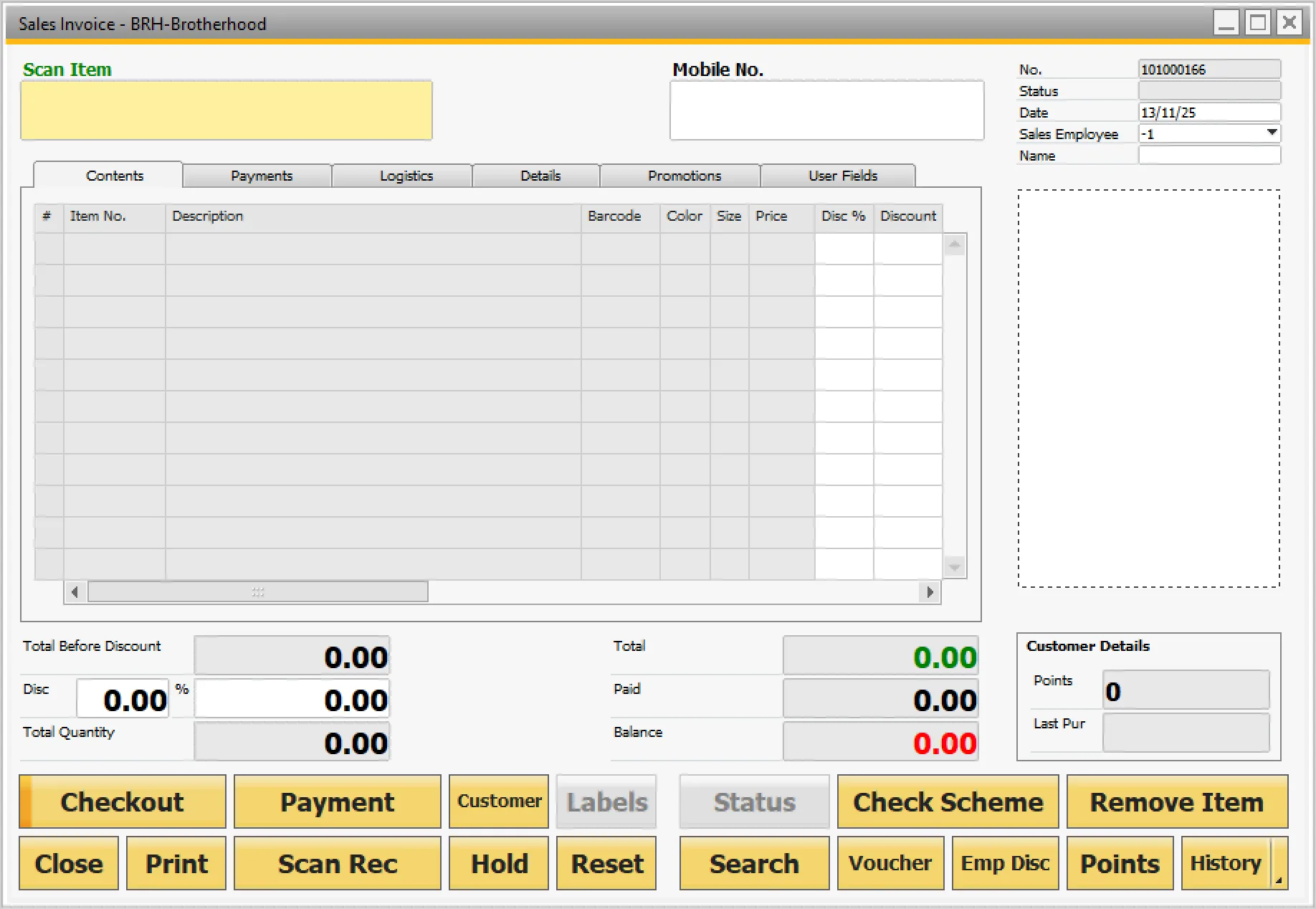
Quick Start Guide
This document describes how to setup B1Bazaar quickly and efficiently to start sales transactions using one or more store.
It is assumed that you have already installed SAP Business One and created a company in SAP Business One.
Install B1Bazaar Add-On
B1Bazaar is provided as a Lightweight Extension package and can be installed on both SAP Business One and SAP Business One Cloud. Please refer to the SAP Lightweight Extension Deployment guide for more details on how to deploy and assign Lightweight Extension packages.
Check SAP Business One Settings
Check and remove Enable Query Validation from Administration -> System Initialization -> General Settings -> Services. As shown in the image below - make sure that these check boxes are not ticked.
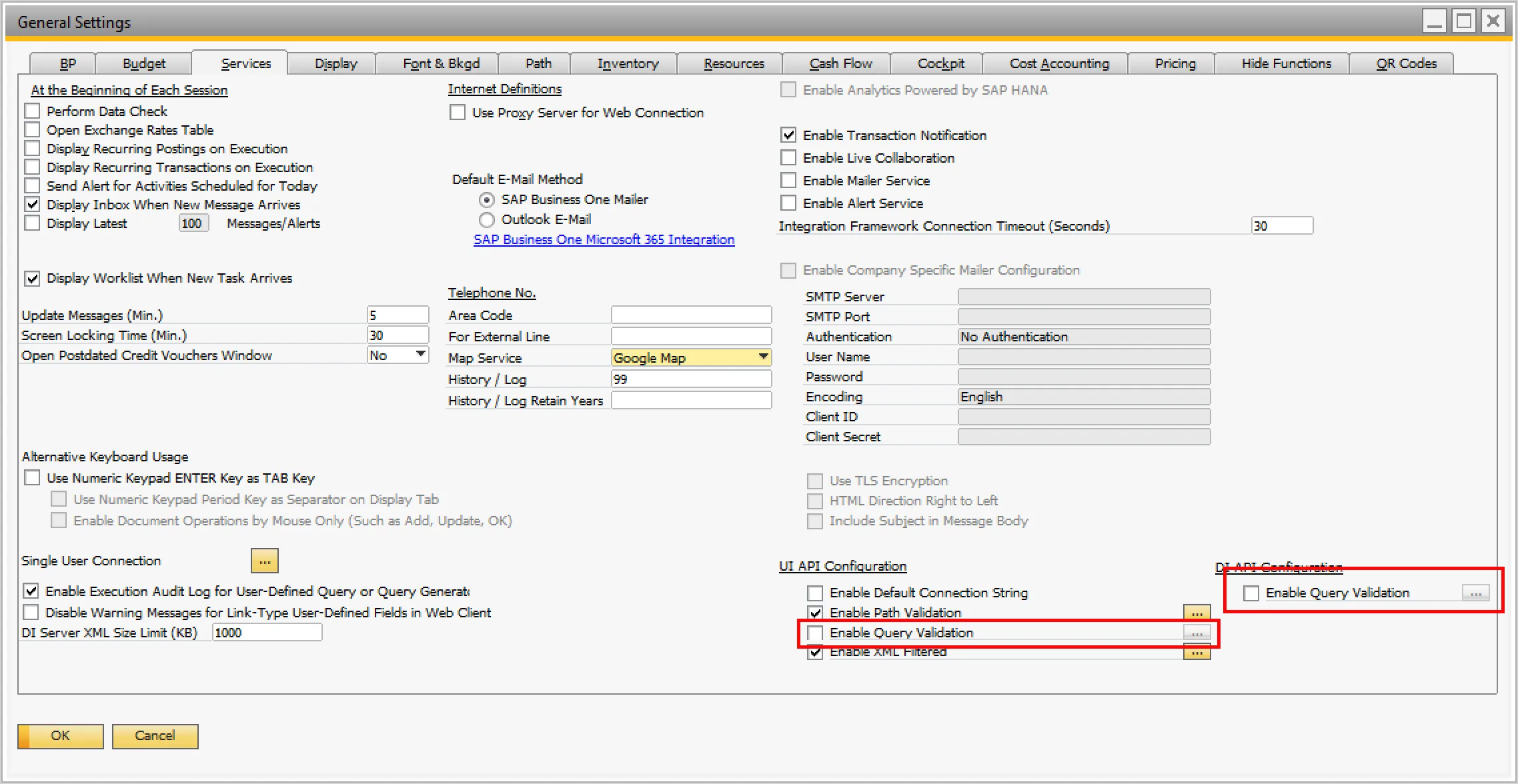
Running B1Bazaar Add-On for First Time
When you start B1Bazaar for the first time, it will check for the requisite tables and fields in the company database. If the same is not present, it will show a prompt to create the requisite tables and fields.
Setup Tables & Fields
B1Bazaar will automatically create all tables and fields required, when you start the add-on for the first time. After the tables and fields are successfully created, restart SAP Business One, and start B1Bazaar add-on, if not set to start automatically.
Setup Direct Database Credentials
Go to B1Bazaar -> Setup -> Database Credentials and enter the database user name and password. These credentials are used for reading data directly from the database. This allows B1Bazaar to read data faster and maintain the performance.
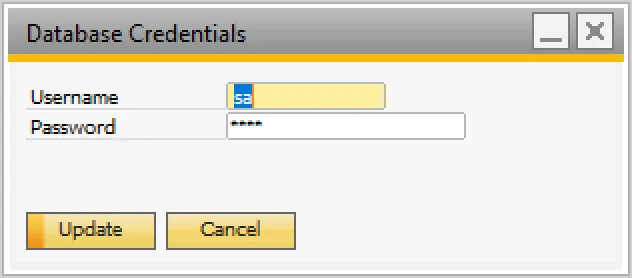
Restart add-on, after setting up the database credentials, so that the add-on will start using the newly configured database credentials.
B1Bazaar Settings - General
Go to B1Bazaar -> Setup -> Settings and specify essential settings. Most of the settings can be changed at anytime later. Settings highlighted in the image are essential for operation of B1Bazaar
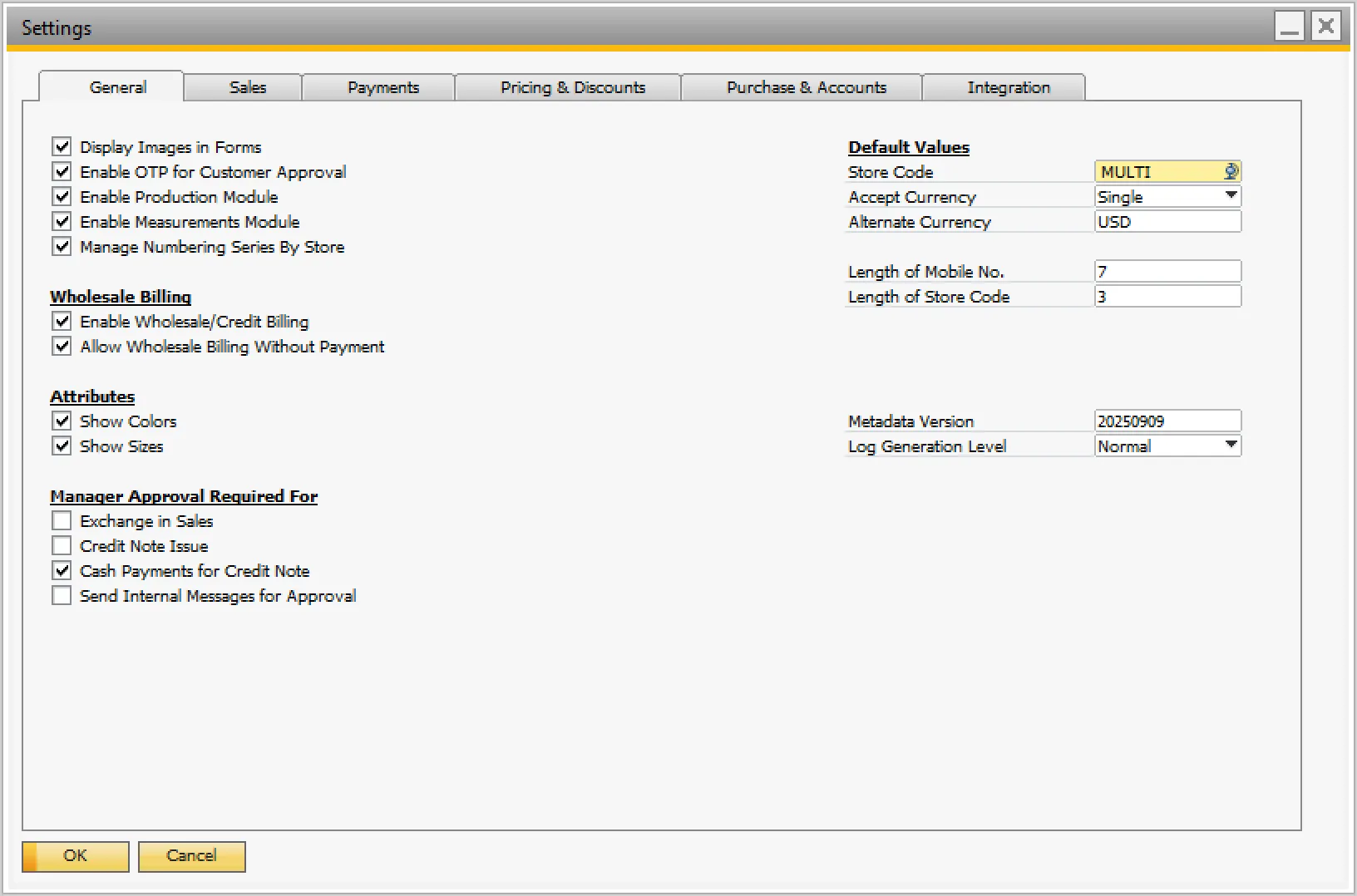
- Store Code - If you are going to use the same database for managing multiple stores online - then enter MULTI - if not - enter the store code of the store this database is going to be used for.
- Accept Currency - If you accept cash in more than one currency, select Dual or Multi Currency as applicable. Else leave the setting as Single Currency.
- Alternate Currency - If you accept cash in more than one currency, enter the alternate currency for cash payments.
Plan Your First Store
Before you create your first store in B1Bazaar, you need to set up following in SAP Business One.
- Warehouse - Each store in B1Bazaar is linked to one warehouse. Define a warehouse which will be linked to the first store.
- Business Partner Customer - Each store uses one BP Master Data - which is used as the cash customer for all retail sales. Retail customers are managed separately by B1Bazaar, but all sales in SAP Business One will be booked against the cash customer.
- Price List - If you want to use a specific price list for the store, please create the same.
- GL Accounts - B1Bazaar uses various GL Accounts for posting of cash receipts, store petty cash, discount vouchers and coupons, etc. You can create separate GL Account for each store.
- Numbering Series - B1Bazaar will post documents to a numbering series linked to the store. You can set up separate numbering series for each store and all documents posted for the store will be created in the respective numbering series only.
- Cost Centers - You can also configure each store to post transactions to a specific cost center. This is optional and can also be configured at later stage.
Add Your First Store
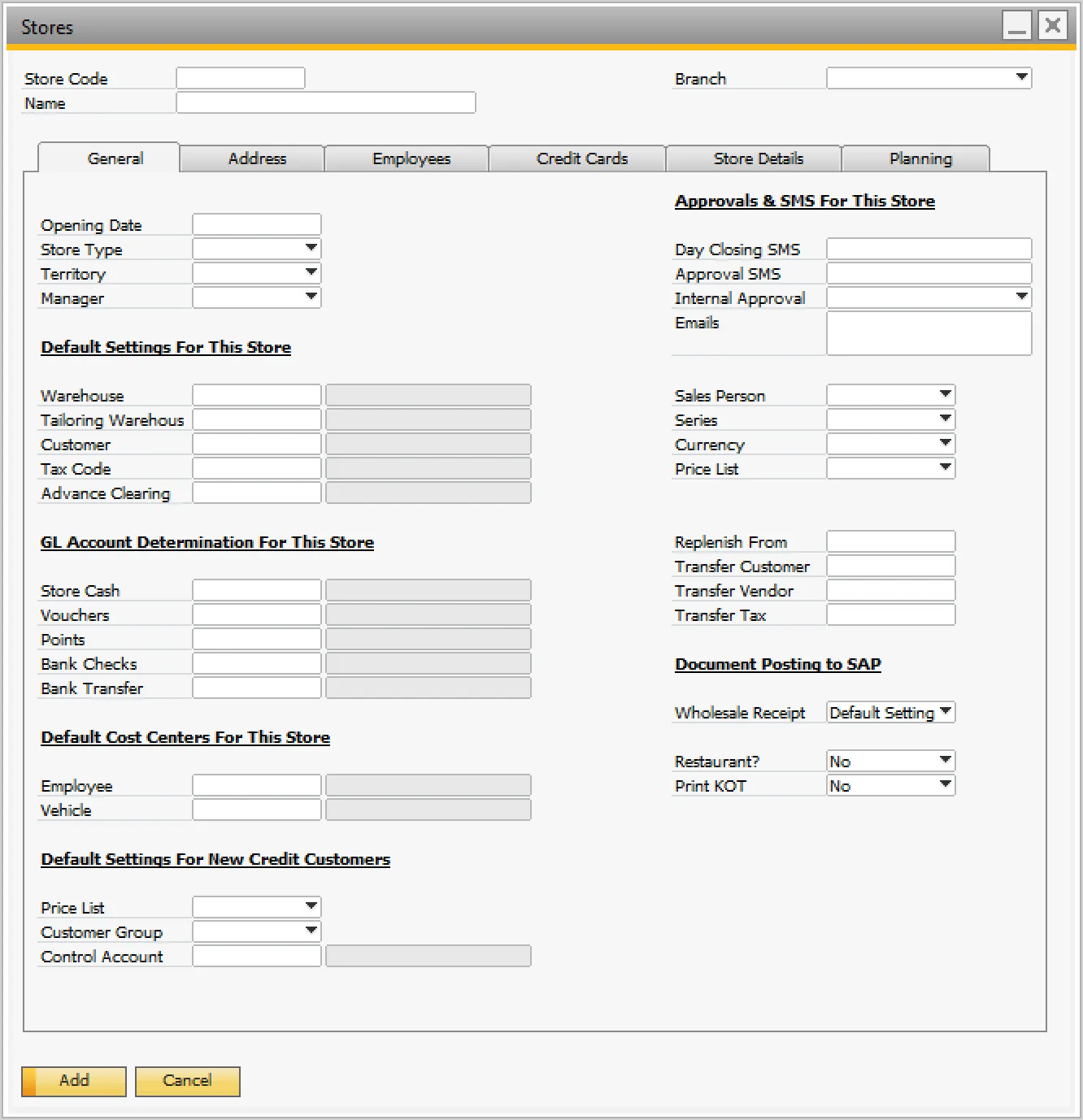
Go to B1Bazaar -> Setup -> Stores Configuration -> Stores. Click on Add button to add new store.
Enter Store Code and Name. If your database is enabled for multi-branch configuration, please select Branch for the store.
Link Warehouse / Accounts / BP with Store
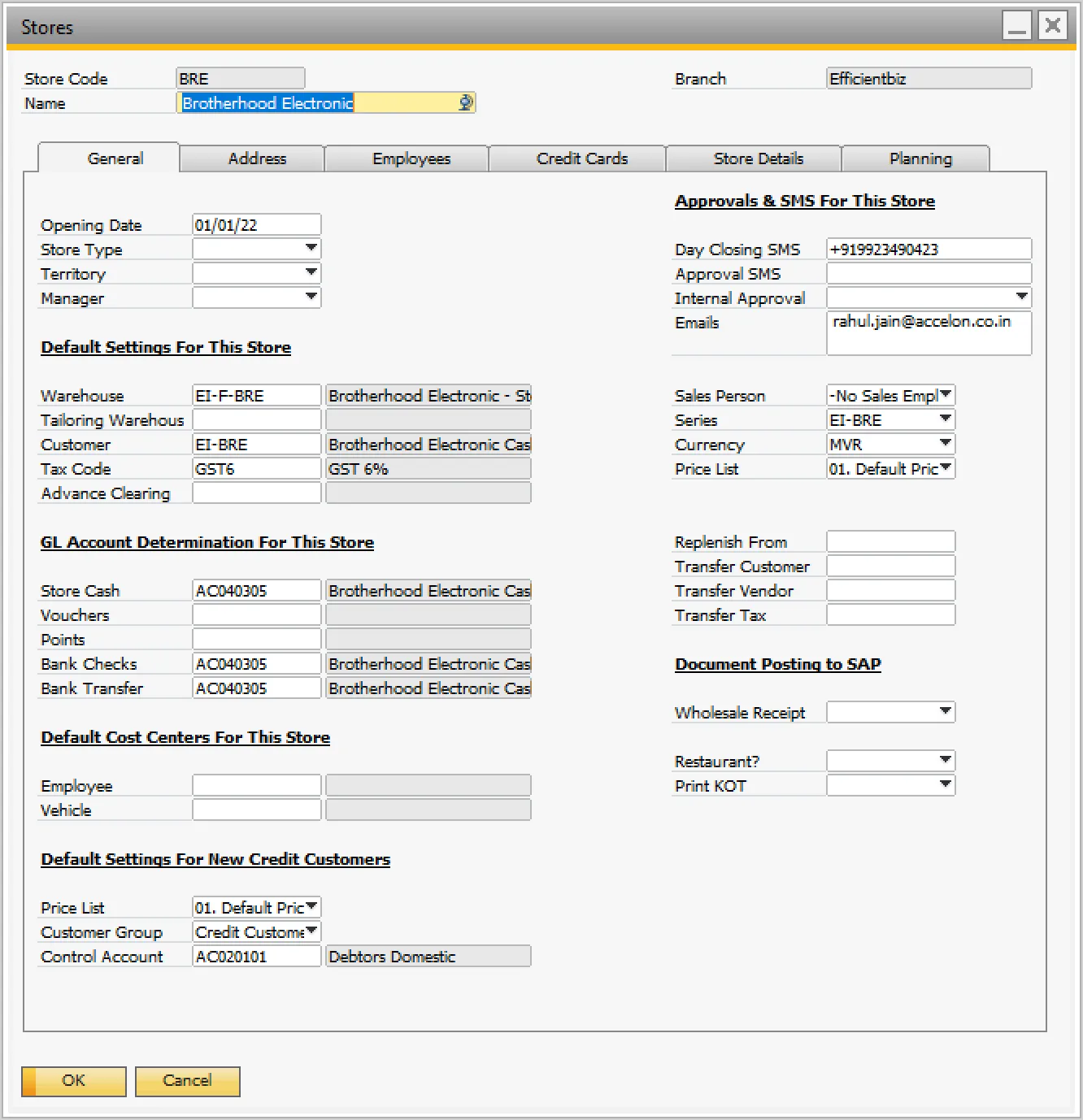
Select default warehouse, business partner, tax code, GL accounts and numbering series created in the Plan Your First Store step.
Setup Receipt Printing Configuration
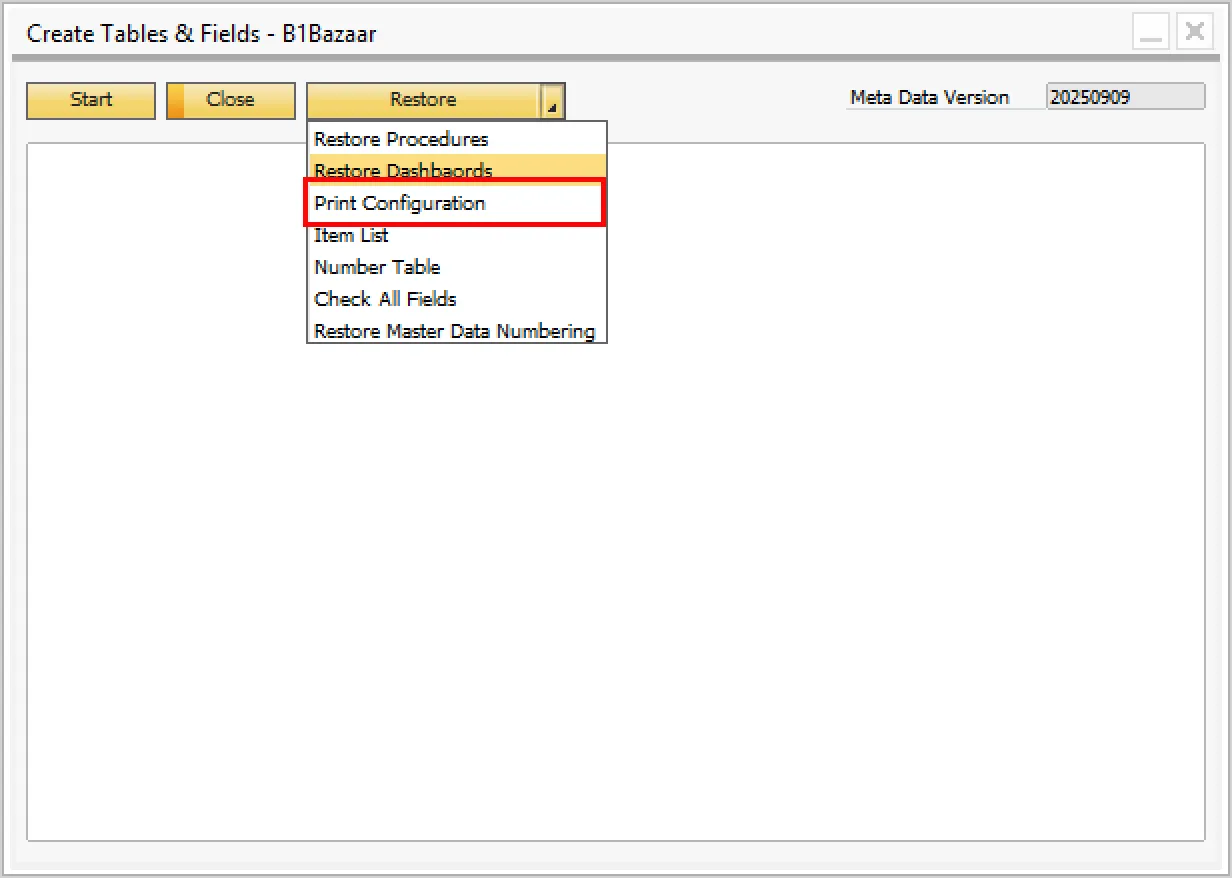
Go to B1Bazaar -> Setup -> Create Tables & Fields, and select Restore -> Print Configuration. This will create 2 default layouts for receipt printing - one for India and another for other countries. You can later modify the layouts to suit your specific requirements.
Set Receipt Layout Determination
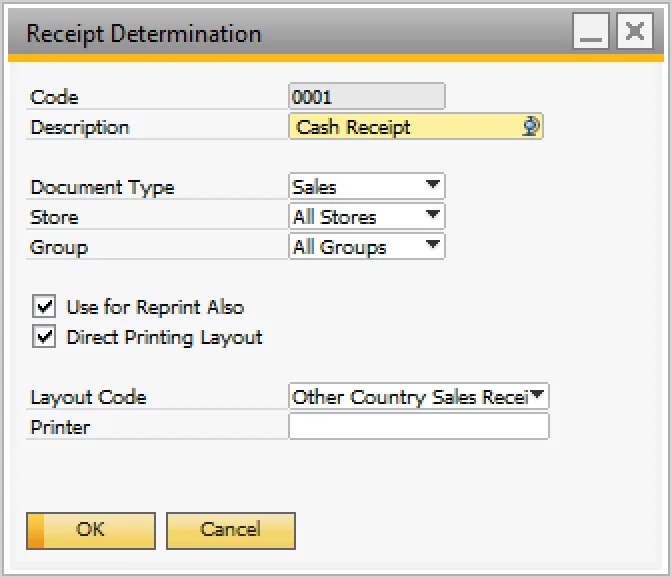
Go to B1Bazaar -> Setup -> Receipt Determination and click on Add button to add receipt layout determination rule. Add rule as shown in the image below. This will use standard Other Country Sales Receipt layout for all cash sales.
Later you can modify the layout or create new layouts. The standard layouts are for Direct DOS Printing to Receipt Printers. You can also use Crystal Reports Layout for printing on other type of printers.
Install CsxImage
This imaging utility is used by B1Bazaar to show pictures in SAP Business One, when running in Desktop Client. Please download the same using following link and install the same.
Create Item Master
If this is a new database, create item masters as required. And receive some stock in the store warehouse.
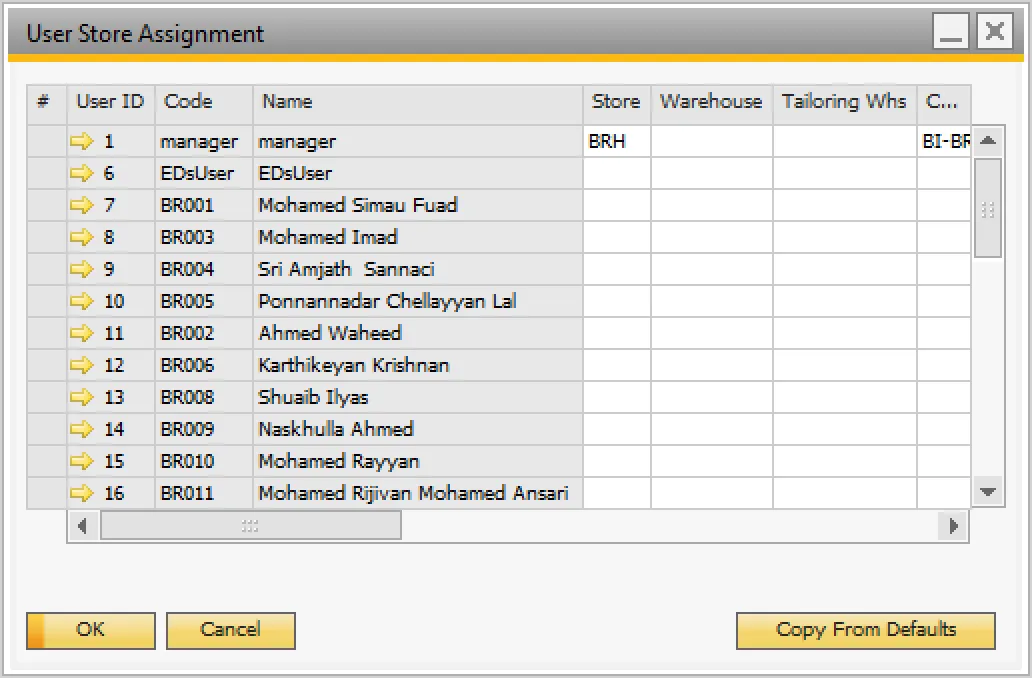
Assign Store to User
Each user in SAP Business One can be assigned to a specific store. Go to B1Bazaar -> Setup -> User Assignment for assigning your first store to the user.
B1Bazaar Is Ready
Your B1Bazaar add-on is now ready to make the first sales invoice. Happy Selling!!